Step 1: Download the Google Gears extension to your browser.
Step 2: Enable it, when it asks you to.
Step 3: Google to Google Reader and click the offline icon and agree.
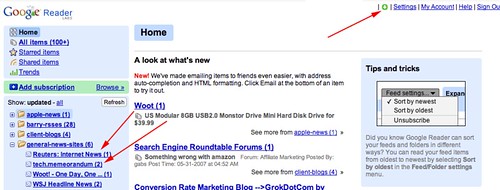
Notice I have 6 items unread in the general news folder.
Step 4: Clicking on the green icon with download all your unread feeds into the Google Gears format. Google Gears will then download them, showing you this status display.

Step 5: When it is done downloading, you will see that green icon turned grey.

Step 6: Go offline by unplugging your internet or using this little trick.

Step 7: Browse your unread feeds offline.

Notice how I now have 3 unread items in the general news folder, so I read three items offline.
Step 8: Go back online.

Step 9: Sync back up with Google Reader by clicking the green icon.

A status display will come up quickly, like in step 4.
Step 10: Google Reader will load up again.

Step 11: Continue browsing online...

Notice it removed those 3 feeds I read in online mode.
With Google Gears, Google is trying to create a standard for working with online web applications in an offline mode. This can be applied to anything. Just see the Google Gears API Developer's Guide.
Forum discussion at WebmasterWorld, DigitalPoint Forums and Google Gears Forum.